
Setting Up a Member-Based Website
Mega Menu User GuideMega Menu 3.0 introduces a suite of comprehensive features designed to streamline the creation and management of member-oriented websites. This powerful add-on seamlessly integrates with Concrete CMS's built-in membership functions, offering a sophisticated yet user-friendly solution for sites requiring user authentication and personalized experiences.
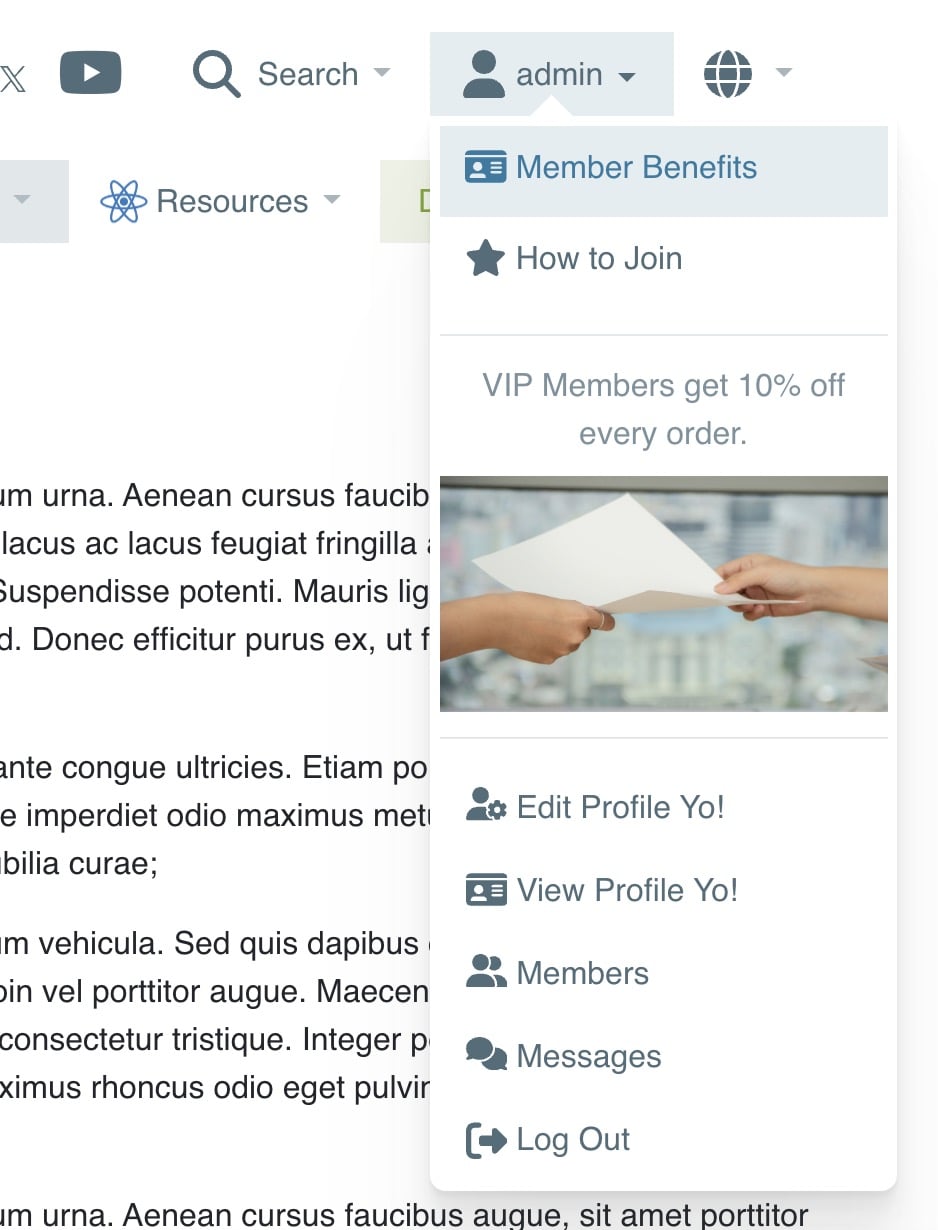
With Mega Menu, you can effortlessly craft customized drop-down menus tailored specifically for members. These menus can incorporate optional functions native to Concrete CMS, such as login, logout, registration, profile management, private messaging, and access to the member directory. This integration ensures that your site's navigation intuitively adapts to the user's logged-in state, enhancing the overall user experience.
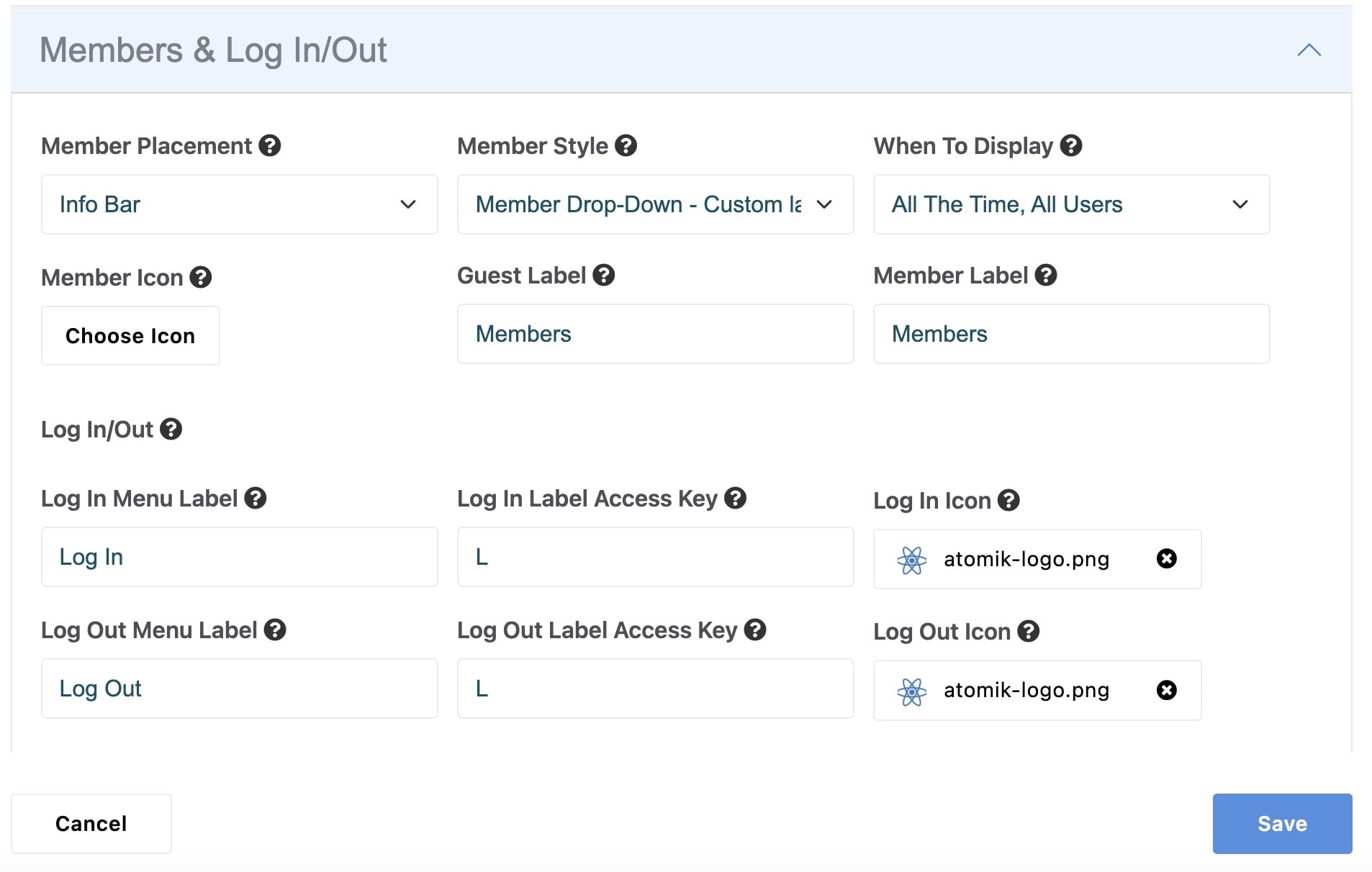
Flexibility is at the core of Mega Menu's member-based features. The add-on allows you to pull custom content from a Stack of your choice, with the ability to display different content for guests and logged-in members. This dynamic content can be arranged in either vertical or horizontal layouts, providing maximum versatility in design and functionality.
To simplify the setup process, Mega Menu offers inline help with deep links directly to relevant Dashboard pages. These helpful prompts guide you through enabling and configuring specific features in Concrete CMS, such as member registration, ensuring a smooth setup process even for complex membership structures.
Performance remains a top priority in Mega Menu 3.0. The add-on employs multiple layers of intelligent caching to ensure the fastest possible page loading times. While block-level caching is supported by default, Mega Menu automatically disables block-level caching when the member feature is enabled via the Member Placement field. This smart caching strategy ensures that each user sees accurate, personalized content, such as unique logout links. Other layers of caching continue to work as designed. See section: Speed Optimization.
Hamburger Menu
To display the custom member menu on the Hamburger menu as well, you must configure these options:
- Set Mobile > Responsive Approach to Hamburger.
- Set Members & Log In/Out > Member Placement to Nav Menu.
- Under Members & Log In/Out, assign a value to Guest Only Stack Item or Member Only Stack Item (or both).
- Populate that Stack with a core Page List block or the custom Manual Page List block. A Content block won't work as it is unstructured.
- Set Members & Log In/Out > Stack Position in Drop-Down to Inline - Top or Inline - Bottom.
Now, Mega Menu will automatically apply a unique block template that removes the necessary formatting to cleanly display the content inline at the top or bottom of the Members menu.